Request for quoteRoof leak over the stairwell
Water ingress
- SiteHawley Crescent Tower, top floor landing
- ScopeFind and fix the leak, make good the ceiling
Fire safety & operations
Finance
Residents & communication
AI & automation
For contractorsSupplier portal
Managing agents on WiseBlock send their repairs and planned works out for quotes through the supplier portal. Register once with your trades and the areas you cover, and requests reach you with the scope, the site and the photographs — then you quote, take the work order and invoice from the same place.
Illustrative request from the demo building.
Sheet 01How work reaches you
No marketplace and no bidding fees. A managing agent asks you to price a job; everything after that happens in the portal.
Your company, the trades you cover and the areas you work in. Credentials and colleagues are optional and can wait.
The agent's request for a quote arrives with the scope, the building and the photographs or documents behind it.
Price it line by line and attach your own documents — or decline it. Declining counts as answering.
Accept the work order, mark it started and completed, then raise your invoice against it and submit it.
Sheet 02The request
A request that says "leak, flat 4" is no use to anyone. On WiseBlock, a fault is usually reported with photographs — by a resident in their portal, or logged by the agent from a call or a site visit — and the Maintenance Surveyor drafts a proper description, category, urgency and the trades needed before a person checks it and sends it out.
So the request you open carries the job, the site and the pictures. You price it with your own line items, attach a method statement or a datasheet if it helps, and send it. Everything you have priced sits in one list, so you can see which quotes are still out.
If a managing agent splits a bigger job by trade, each package comes to the right firm separately, with the same photographs.
Sheet 03How agents choose who to ask
Agents who switch on the Contractor Matcher see a shortlist scored from their own records — never from a model's opinion — with the reasons shown. These are the signals.
Whether you cover the trades the job needs. Keep your trades up to date in your company profile.
Firms that cover the building's postcode area come first, then firms based in it.
Whether you answer when asked, and how quickly. A decline is an answer; silence is not.
How your prices compared on the same jobs, and the rating the agent has recorded.
How much open work you are already carrying for that agent.
A firm an agent has never used is scored neutrally, not marked down.
Sheet 04Work orders and invoices
When you win the job you get a work order. Accept it, mark it in progress when you start, and completed when you're done — the agent sees each step as it happens.
Then raise the invoice from the completed work order, attach your PDF and submit it. On the agent's side it is checked against the work order and the quote it came from, which is what gets an invoice approved without a back-and-forth.
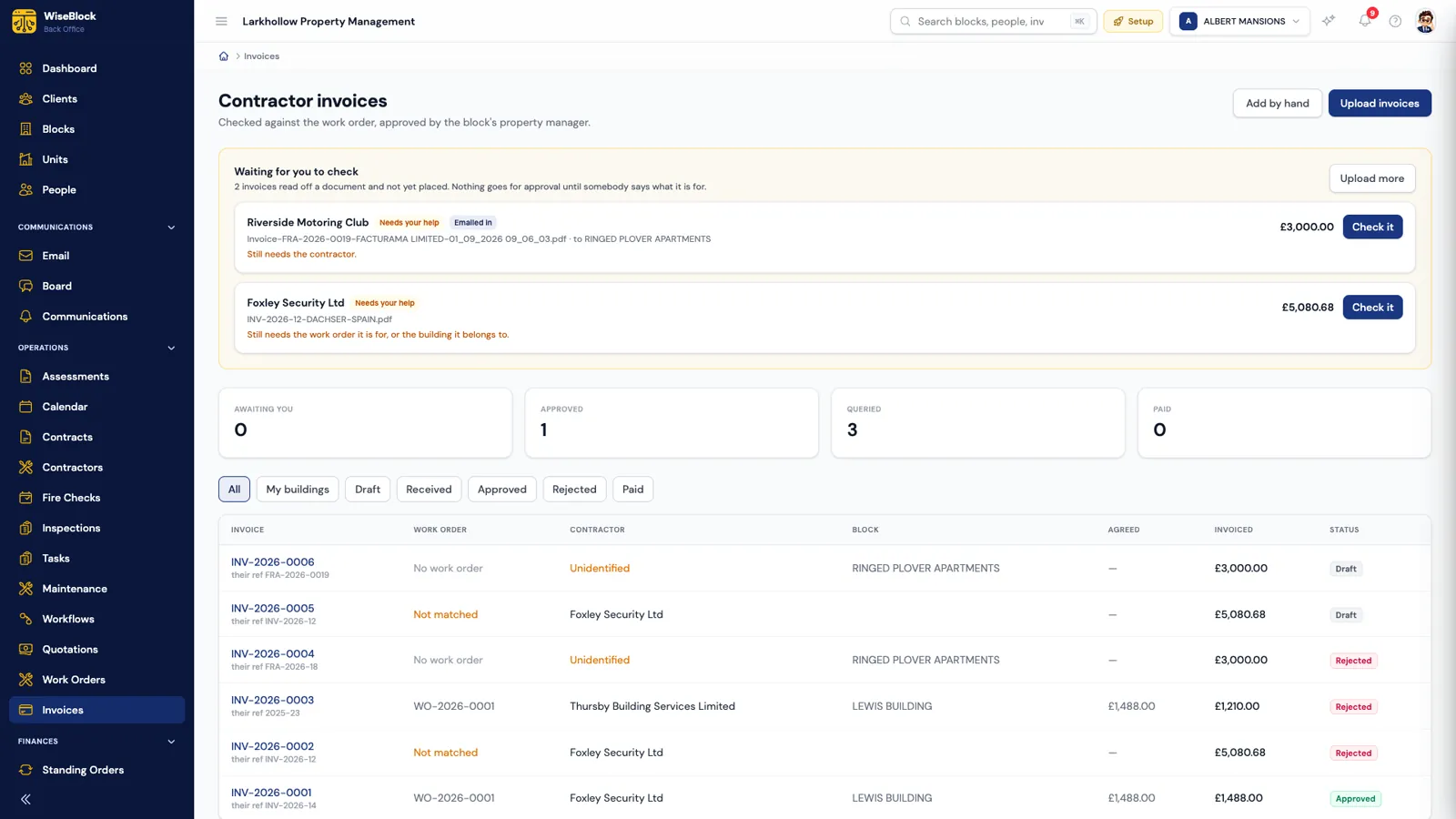
An invoice that arrives by email waits here until somebody has looked at it.
An invoice with no work order behind it is flagged — one raised from yours is not.
Draft, received, approved, rejected or paid.
Sheet 05Your company and team
The portal is yours, not the agent's: one registration covers every managing agent on WiseBlock you work with.
Logo, description, trades, areas, company number, VAT registration, public liability insurance and accreditations — what an agent checks before asking you.
Invite whoever handles quotes or invoices. Each has their own login, so there are no shared passwords and work doesn't stop when one person is away.
If more than one agent uses you, switch between them in the portal rather than juggling logins.
An agent who already uses you can invite you onto the portal directly; your existing record is picked up, not duplicated.
Questions
No. Registering and answering requests for quotes is free. Paid plans add more for running your business, and are set out on the contractor pricing page.
No. You can register yourself from this page. An agent who already works with you can also invite you.
No. WiseBlock never takes a percentage of your jobs.
Yes. Declining is one click, and it counts as answering — agents can see you replied.
Yes. Invite colleagues during registration or later from your profile; each gets their own login.
Next step
Register your company, trades and areas — it's free — and requests from managing agents on WiseBlock reach you directly.